> ## Documentation Index
> Fetch the complete documentation index at: https://docs.godrift.ai/llms.txt
> Use this file to discover all available pages before exploring further.
# Robot Library
> Browse a curated library of 100+ robots, preview them in MuJoCo or RViz, and stage them into your workspace with /robots
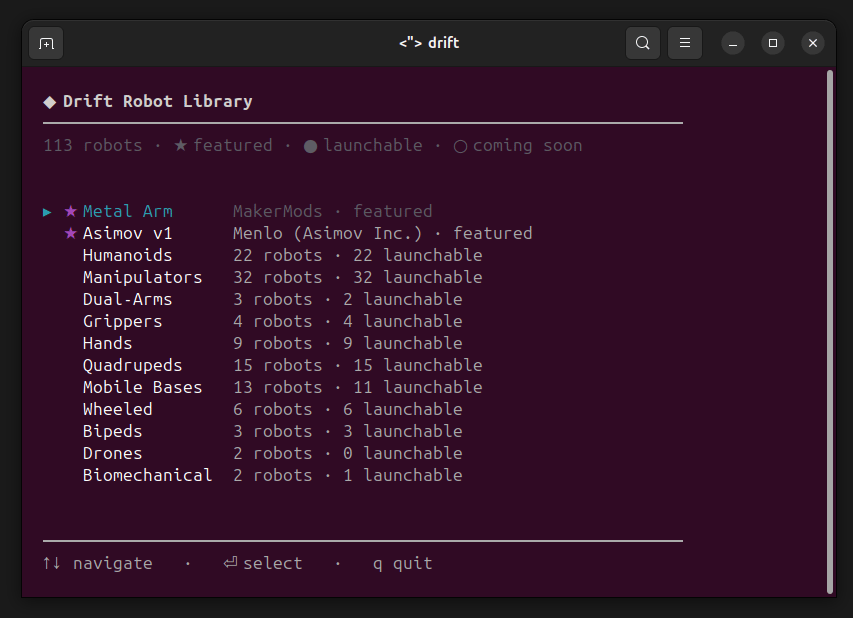
Drift ships with a curated library of 100+ robots — humanoids, manipulators, quadrupeds, mobile bases, grippers, and more. The `/robots` slash command opens a full-screen picker where you can browse the library, preview any robot instantly, or stage it into your workspace so Drift can build around it.
`/robots` is the fastest way to bring a well-known robot into a Drift session. If you want to author a scene from scratch instead, see [Building a MuJoCo Scene](/guides/mujoco-scene).
## Opening the library
From any Drift prompt, type:
```drift theme={null}
/robots
```
Drift opens a full-screen picker organized as **category → maker → model**. Use `↑↓` to navigate, `Enter` to select, `←` to go back, and `q` to quit.
 ## Picking a robot: format → action
After selecting a model, Drift asks two more questions:
1. **Format** — MJCF (opens in MuJoCo) or URDF (opens in RViz). Only formats the robot actually ships are offered.
2. **Action** — Preview in the appropriate viewer, Add to workspace, or Go back.
### Preview
Opens the robot in the viewer without touching your workspace. Physics is paused so the model stays in its home pose regardless of whether its actuators can hold it under gravity — this is a preview, not a stability test.
### Add to workspace
Stages the bundle at `./robots//` in your current working directory. No launch. From there, Drift treats it as the "active robot" for the session — subsequent prompts like `launch it in mujoco` or `add a lidar to the head link` resolve against that robot.
## Two featured robots to try
Two robots ship with pre-composed demo scenes ready to inspect. Pick either from the library, choose **MJCF → Preview in MuJoCo**:
### Asimov v1 (Menlo)
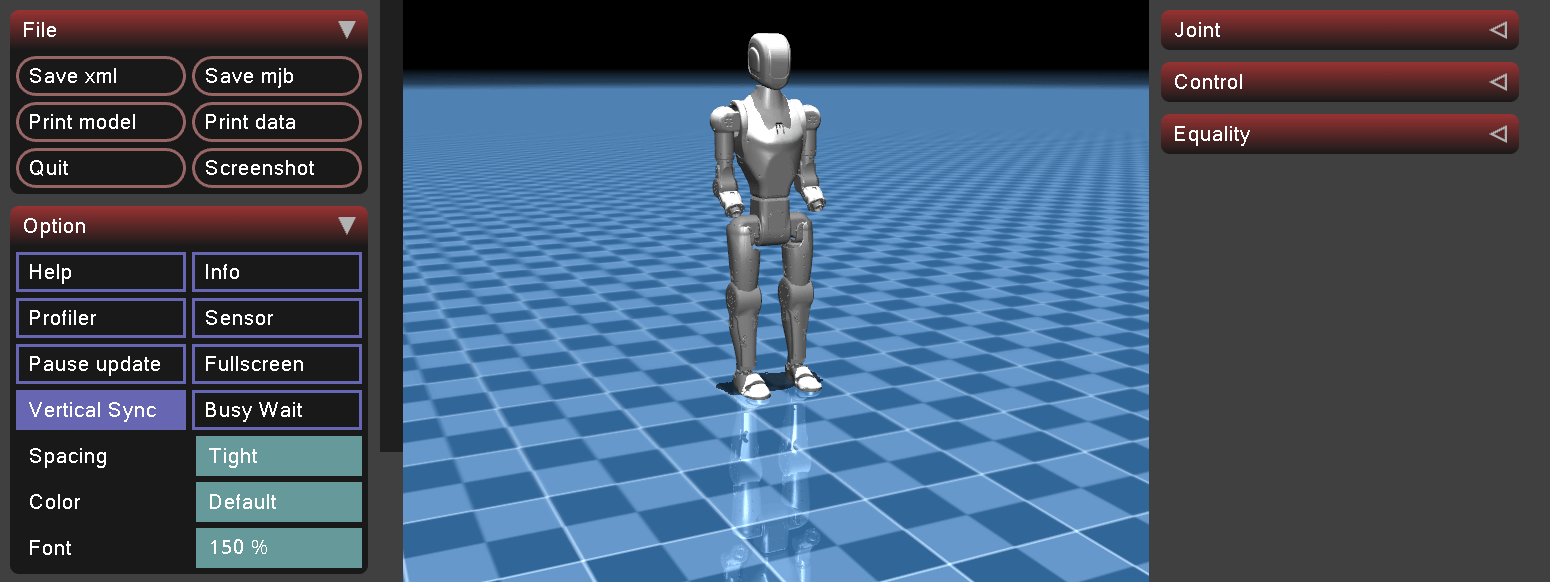
Full humanoid with legs and arms. Preview holds the standing home pose so you can rotate the camera around it and inspect the model.
## Picking a robot: format → action
After selecting a model, Drift asks two more questions:
1. **Format** — MJCF (opens in MuJoCo) or URDF (opens in RViz). Only formats the robot actually ships are offered.
2. **Action** — Preview in the appropriate viewer, Add to workspace, or Go back.
### Preview
Opens the robot in the viewer without touching your workspace. Physics is paused so the model stays in its home pose regardless of whether its actuators can hold it under gravity — this is a preview, not a stability test.
### Add to workspace
Stages the bundle at `./robots//` in your current working directory. No launch. From there, Drift treats it as the "active robot" for the session — subsequent prompts like `launch it in mujoco` or `add a lidar to the head link` resolve against that robot.
## Two featured robots to try
Two robots ship with pre-composed demo scenes ready to inspect. Pick either from the library, choose **MJCF → Preview in MuJoCo**:
### Asimov v1 (Menlo)
Full humanoid with legs and arms. Preview holds the standing home pose so you can rotate the camera around it and inspect the model.
 ### Metal Arm by [MakerMods](https://www.makermods.ai/metal-arm)
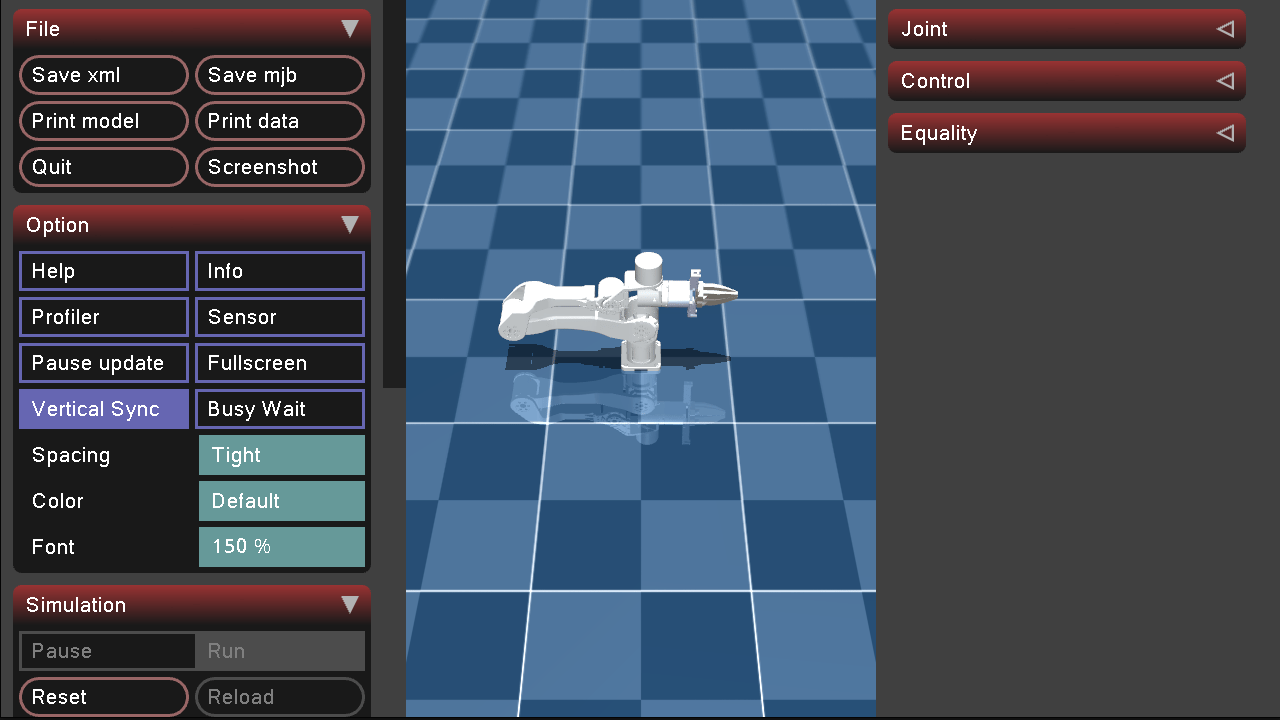
6-DOF fixed-base manipulator arm on a bench mount. Preview holds a folded rest pose. Metal Arm also composes with Drift's demo world scenes for pick-and-place demonstrations.
### Metal Arm by [MakerMods](https://www.makermods.ai/metal-arm)
6-DOF fixed-base manipulator arm on a bench mount. Preview holds a folded rest pose. Metal Arm also composes with Drift's demo world scenes for pick-and-place demonstrations.
 ## Preview vs. real launch — what physics runs
Preview is intentionally frozen so a robot with underspecified actuators or borderline balance doesn't topple over during inspection. When you want to test physics, ask Drift to launch it via chat.
| How you opened it | Physics |
| ------------------------------ | ------------------------ |
| `/robots` → Preview | Paused (kinematics only) |
| Chat: `launch it in mujoco` | Full physics |
| Chat: `does this robot stand?` | Full physics |
## Where the files land
* **Preview** caches the bundle to `~/.drift/robots-cache/` for reuse across sessions. No workspace changes.
* **Add to workspace** copies the bundle to `./robots//` under your current working directory. The bundle contains the model file (`robot.xml` or `robot.urdf`), meshes, and any bundled scene wrappers.
Once staged, keep talking to Drift as you would with any authored scene:
```drift theme={null}
launch the robot here in mujoco
```
```drift theme={null}
add a hokuyo lidar to the head link and verify in RViz
```
## Preview vs. real launch — what physics runs
Preview is intentionally frozen so a robot with underspecified actuators or borderline balance doesn't topple over during inspection. When you want to test physics, ask Drift to launch it via chat.
| How you opened it | Physics |
| ------------------------------ | ------------------------ |
| `/robots` → Preview | Paused (kinematics only) |
| Chat: `launch it in mujoco` | Full physics |
| Chat: `does this robot stand?` | Full physics |
## Where the files land
* **Preview** caches the bundle to `~/.drift/robots-cache/` for reuse across sessions. No workspace changes.
* **Add to workspace** copies the bundle to `./robots//` under your current working directory. The bundle contains the model file (`robot.xml` or `robot.urdf`), meshes, and any bundled scene wrappers.
Once staged, keep talking to Drift as you would with any authored scene:
```drift theme={null}
launch the robot here in mujoco
```
```drift theme={null}
add a hokuyo lidar to the head link and verify in RViz
```